Pack Textures To Array Tool
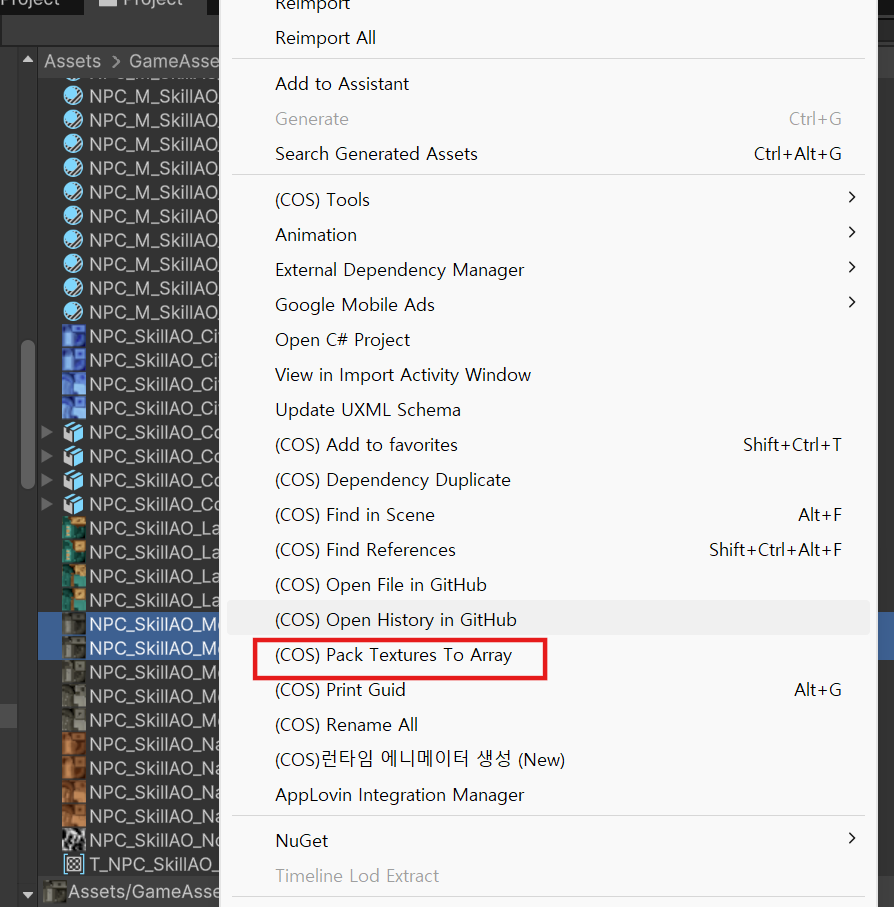
A Unity editor tool that takes multiple selected Texture2Ds and, with one right-click, auto-generates a grid PNG for Texture2DArray — including optimal grid calculation and automatic sRGB preservation. Category: Tool | Slug: pack-textures-to-array
Problem
To build a Texture2DArray, textures need to be composited into a grid PNG manually, and Texture Shape / Columns / Rows have to be set in the Inspector by hand. As the number of textures grows, the work becomes repetitive, and mistakes like forgetting the sRGB setting are easy to make.
Implementation
- 01
1. Validation (fail-fast)
Before merging, three conditions are checked together. If any one fails, abort immediately.
Check Reason Same resolution Texture2DArray requires all slices to be the same size Same sRGB setting Prevents mixing color spaces across slices Same folder Determines output path + prevents accidental asset mixing - 02
2. Auto-compute the optimal grid layout
Exhaustive search for the columns×rows arrangement that fits N items. Priorities:
Examples: 5 items → 3×2 (waste 1), 7 → 4×2 (waste 1), 9 → 3×3 (waste 0)
- 03
3. Pixel compositing via RenderTexture
Each slice is copied into the final texture via
Graphics.Blit→RenderTexture→ReadPixels.Watch-outs:
ReadPixelsuses a bottom-left origin → flip Y so slice 0 is on top- Empty slots are cleared transparent (
clearColor = 0,0,0,0) - GPU memory managed via
RenderTexture.GetTemporary/ReleaseTemporary
- 04
4. sRGB single-import preservation (AssetPostprocessor bridge)
To apply the sRGB setting on the generated PNG in a single ImportAsset, a
PendingSRGBSettingsdict is used as a bridge.Applies sRGB on the first import without a second
SaveAndReimport()call, avoiding the double-reimport problem. - 05
5. GPU limit pre-check
Pre-validate that the output size doesn't exceed the GPU's maximum resolution via
SystemInfo.maxTextureSize.
Conclusion
- In the Project window, select 2+ Texture2Ds → right-click
(COS) Pack Textures To Arrayonce T_{name}_Array.pngis created, with Inspector guidance logged automatically
Tradeoffs & Future Work
Tradeoffs
- Output is fixed to PNG (RGBA32) — if the source was a compressed format, compression settings must be applied separately after import
- Converting the grid PNG into a Texture2DArray via Inspector (Shape / Columns / Rows) is still manual
- Textures in different folders cannot be processed together (intentional restriction — prevents misordering)